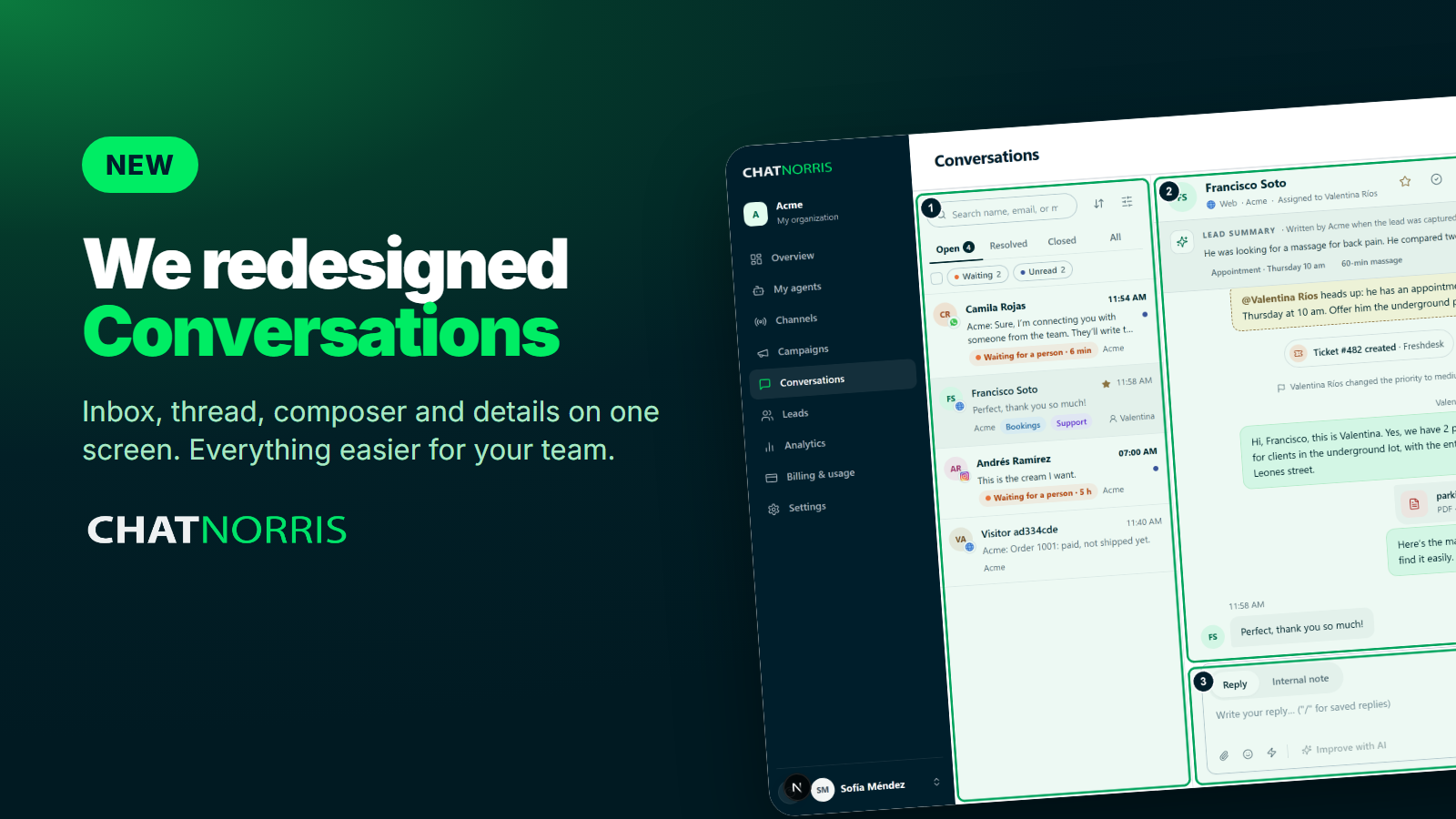
When your AI agent hands off a conversation, someone on your team needs to understand in seconds what happened, what the person wants and what is still missing. Until now, that meant reading the whole history, opening another tab to see the contact's details and asking in a separate chat who was handling it.
We redesigned Conversations so all of that lives in one place.
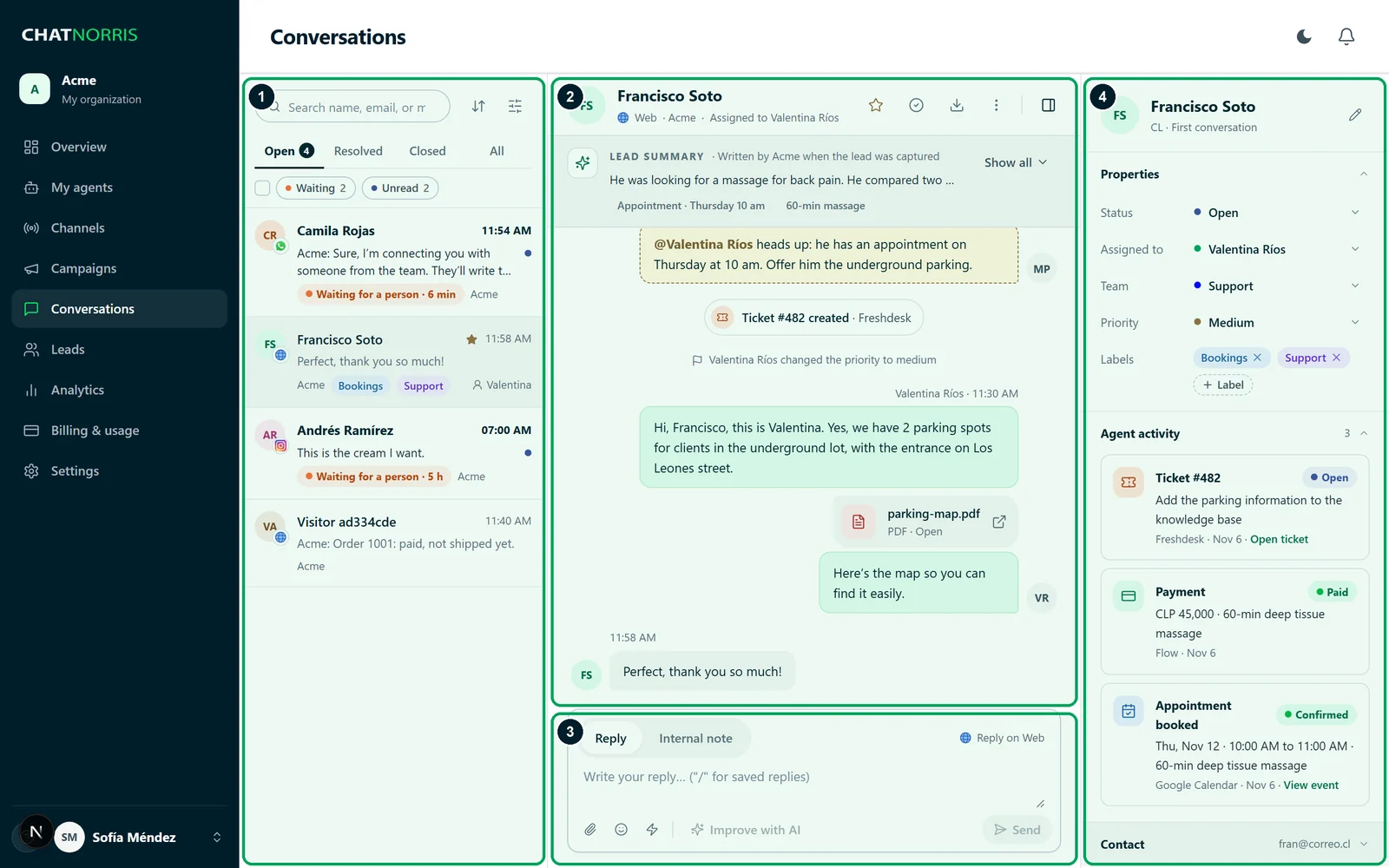
1. The inbox: find what matters
Every conversation from your website, WhatsApp, Instagram, Messenger, Telegram and Email, in a single list:
- Search that finds what you mean: by name, email, phone and also by the text of the messages.
- Quick filters: Waiting shows only the conversations waiting for a person, with how long they have been waiting, and Unread shows the ones nobody has opened yet.
- Tabs and filters by status, channel, agent, priority, team, labels and date.
- Multi-select to resolve, assign, close or export several conversations at once.
2. The thread: the full context, without reading everything
The thread is no longer just a list of messages. When the agent hands off, it leaves a handoff summary right where the handoff happened: the reason, what the person wants, the context, and which contact details you have and which are missing. If the conversation produced a lead, the lead summary sits at the top, with the interest, the outcome and what is pending.
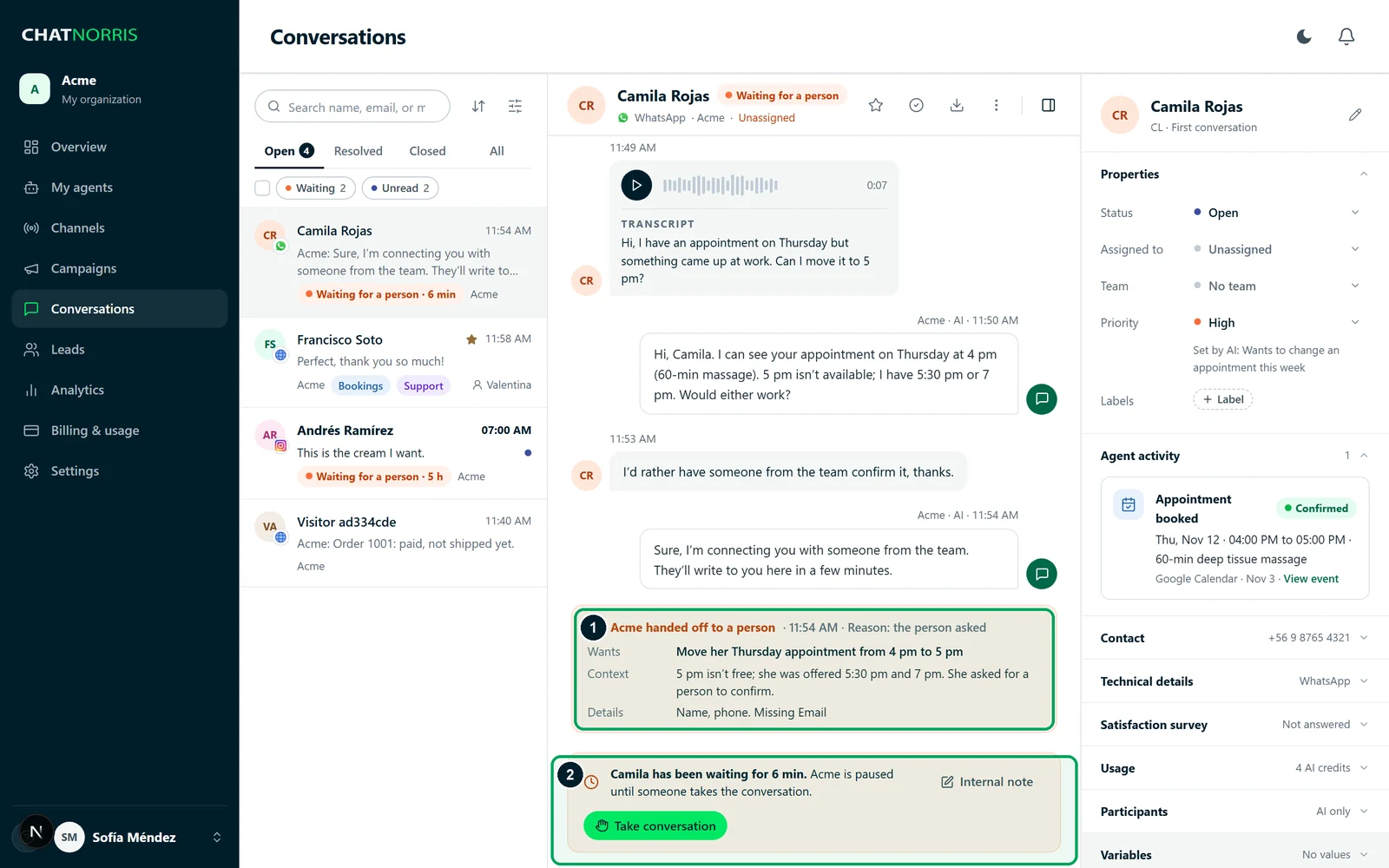
The thread also records what happens to the conversation:
- What your team does: who took it and how long the person waited, assignments, and changes of status, priority or team.
- What the agent does: booked appointments, received payments, created tickets and looked-up orders.
- Images, PDFs and voice notes, with the audio transcript below.
3. The composer: reply, attach a file or leave a note
If the person is waiting or the AI is replying, the composer shows Take conversation: the AI pauses and you reply. As you write, you can:
- Attach an image or a PDF, delivered through the conversation's own channel.
- Use your saved replies by typing
/. - Improve with AI to make your draft clearer and match the conversation's language.
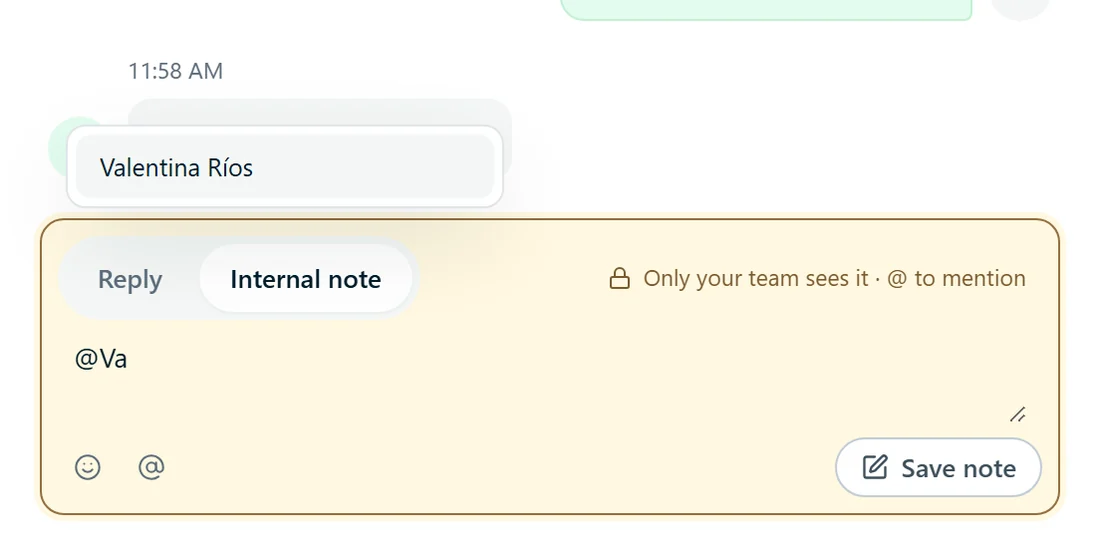
To talk to your team without the customer seeing it, switch to Internal note: mention a teammate with @ and they get a bell notification. Notes are never sent to the visitor or to the AI agent.
Create your agent, connect your channels and handle every conversation with the full context in view.
Start for free4. The details panel: everything about the conversation
On the right, organized in sections: status, assignee, team, priority and labels; the agent activity (appointments, tickets, payments and orders, with a link when there is one); the contact details and that person's other conversations. You can also block a contact from there in case of spam or abuse.
Built for every channel
Outside the website widget, replies from the agent and your team go out as plain text, using WhatsApp's own bold formatting. Your customers never see stray asterisks or symbols in their messages.
Availability
The new Conversations screen is available now in the dashboard for every organization, in /conversations and in each agent's conversations. Exporting conversations is part of the Premium plan, and Improve with AI uses AI credits.
The full zone-by-zone walkthrough is in the Conversations guide and the internal notes guide.
In short
Fewer tabs, fewer questions and more context: the new Conversations screen shows you what happened, what is missing and who is handling it, so your team replies better and faster.