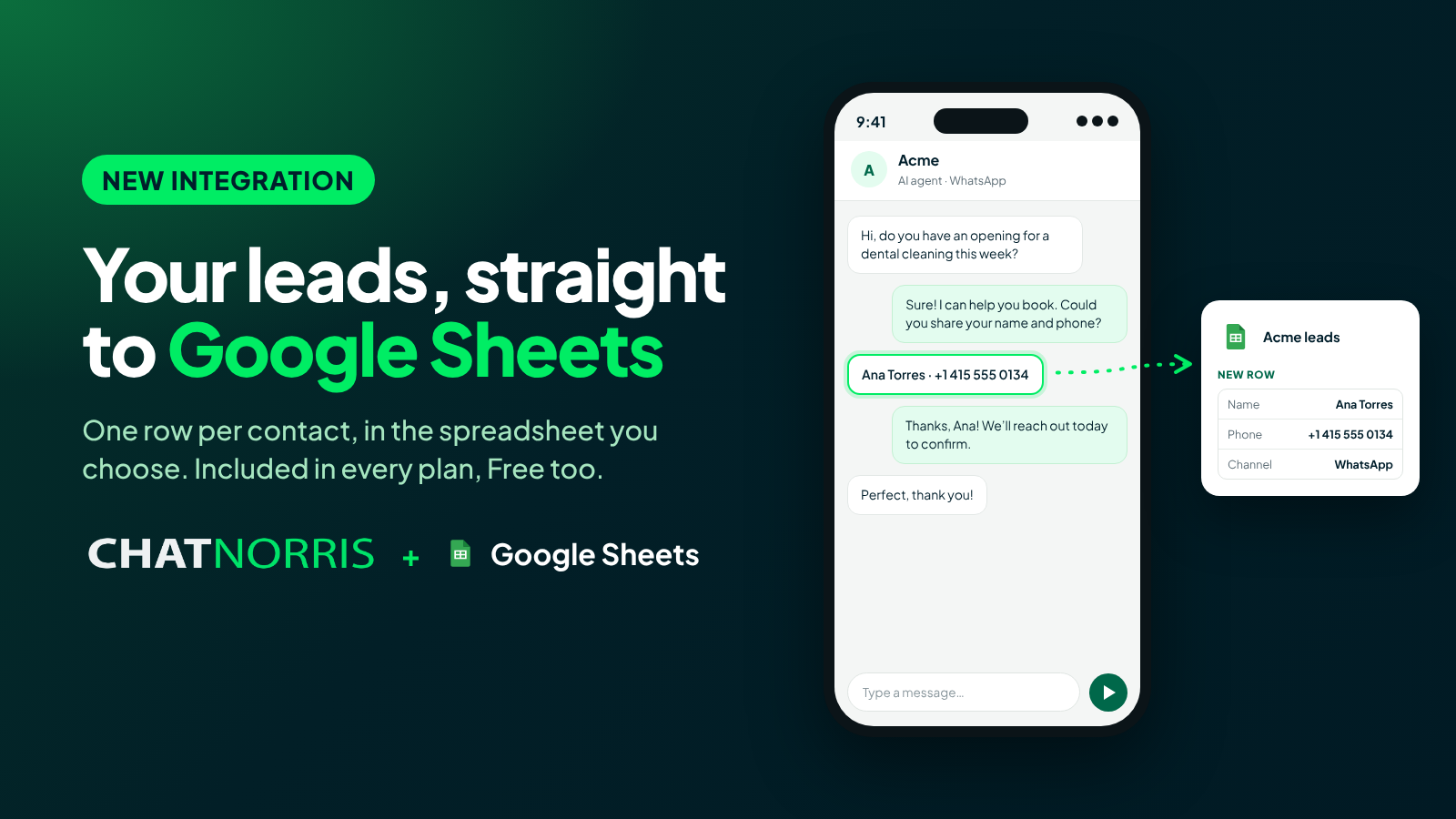
Your ChatNorris agent talks to visitors around the clock and, when someone shows interest, asks for their details. Those contacts land in your ChatNorris Leads, but many teams work somewhere else: a shared spreadsheet where calls get assigned, follow-ups get noted and the weekly report gets built.
Until now, getting each contact into that spreadsheet meant copying and pasting. Starting today, your agent does it for you.
What it does
When a visitor leaves their email or phone, the agent adds a row to the Google Sheets spreadsheet you choose, with the columns you define:
- Contact details: name, email, phone, company and any other fields your agent asks for.
- Your Lead Form answers, field by field.
- Your custom Leads columns, if your plan includes them.
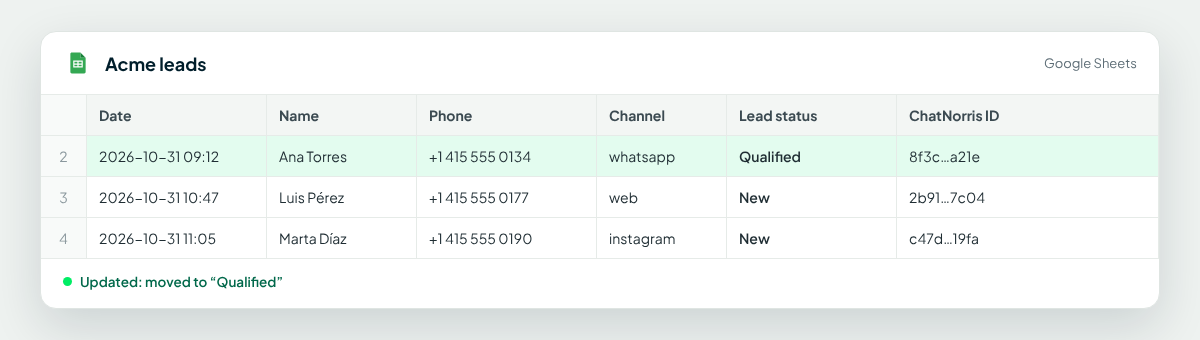
- ChatNorris data: the date, the agent, the channel, the lead status and a link to the conversation.
The spreadsheet gets a link to the conversation, never the full conversation. And the row isn't repeated: if the visitor confirms their details again, they don't show up twice.
One spreadsheet for each job
You can create several Google Sheets actions on the same agent, each with its own spreadsheet and its own rule for adding rows:
- Every confirmed contact, wherever it comes from.
- Only when a specific Lead Form is submitted. For example, quotes to one spreadsheet and complaints to another.
- When the lead moves to a status. When your team marks a lead as “Qualified” in Leads, it shows up in the sales spreadsheet. Everything else stays out.
Each action can also be limited to some channels: for example, only contacts that come in through WhatsApp.
The row stays up to date
Leads change: your team qualifies one, the visitor comes back with their company name, someone fixes a phone number. With Keep the row up to date, ChatNorris rewrites those cells in the row it already added, instead of leaving an old snapshot.
The row is found by its ChatNorris ID column, so you can sort the spreadsheet, filter it or add your own notes columns: ChatNorris only touches the columns you mapped.
Create your agent for free, connect your Google account and get the first row in minutes.
Start for freeYour Drive stays yours
When you connect Google, ChatNorris only asks for access to the spreadsheets you pick with the Google picker or create from ChatNorris. It can't see the rest of your Drive. In those spreadsheets it only reads the headers and adds or updates your contacts' rows: it never deletes anything.
Everything is saved as text, so if someone types something that looks like a formula, it doesn't run.
If something fails, you'll know
If Google doesn't respond, ChatNorris retries on its own. If the spreadsheet is deleted or access is lost, you get an alert in the notifications bell and, once you fix it, one click retries the pending rows. The action's form shows how many rows were added, how many are pending and the reason for the last failure.
How to connect it
- In ChatNorris, open your agent's Integrations, choose Google Sheets and connect your Google account.
- Create the Google Sheets action: choose when a row is added and the spreadsheet (an existing one or a new one with the headers ready).
- Review the columns, send a test row and enable the action.
The step-by-step guide (in Spanish) is in the Google Sheets guide.
Availability
The Google Sheets integration is included in every plan, Free too. Adding or updating rows doesn't use AI credits. See the plans on the pricing page.
In short
Your agent captures the contact and your spreadsheet gets it instantly, in the right column and up to date with whatever happens next. Your team keeps working where it already works.