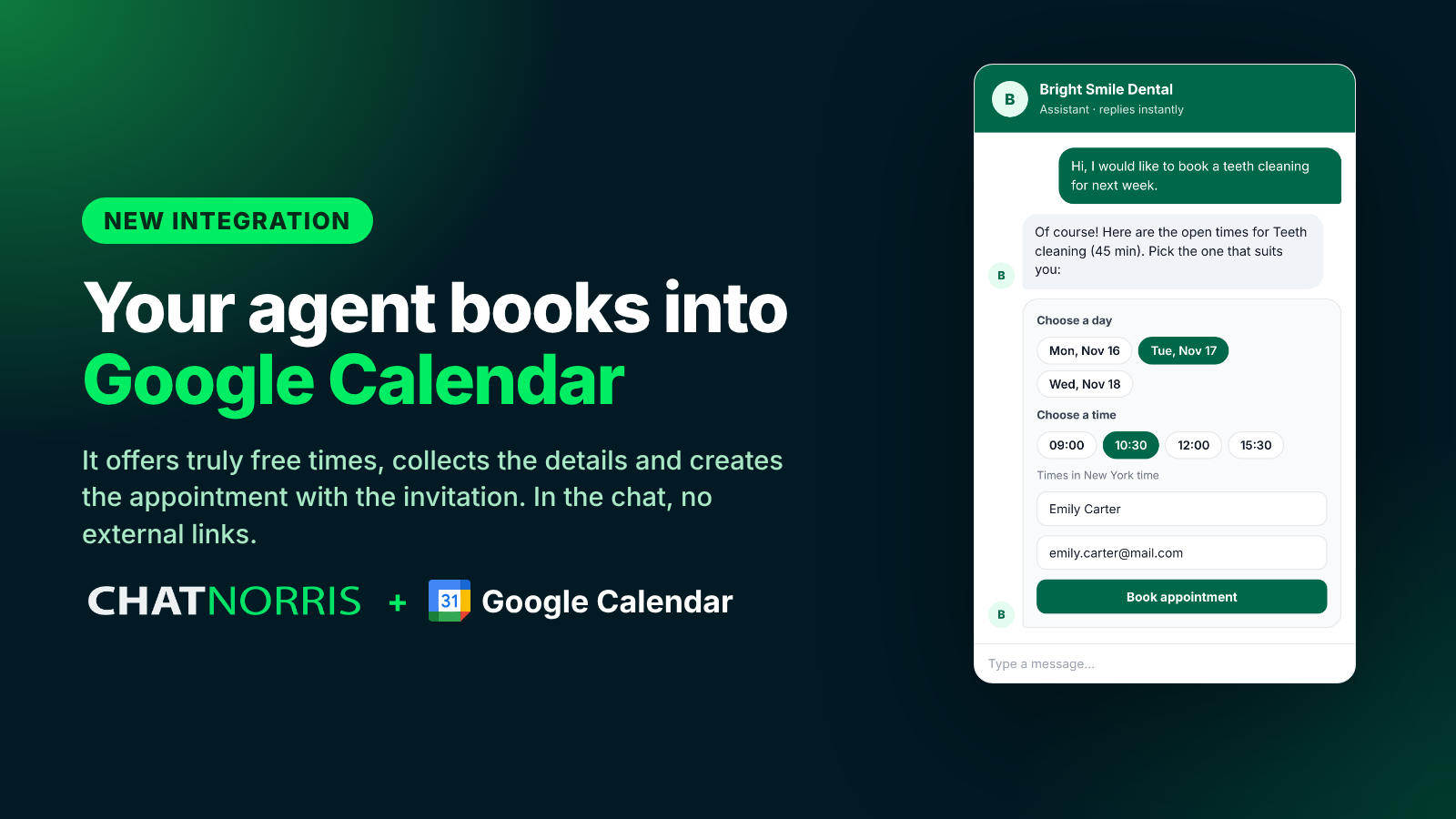
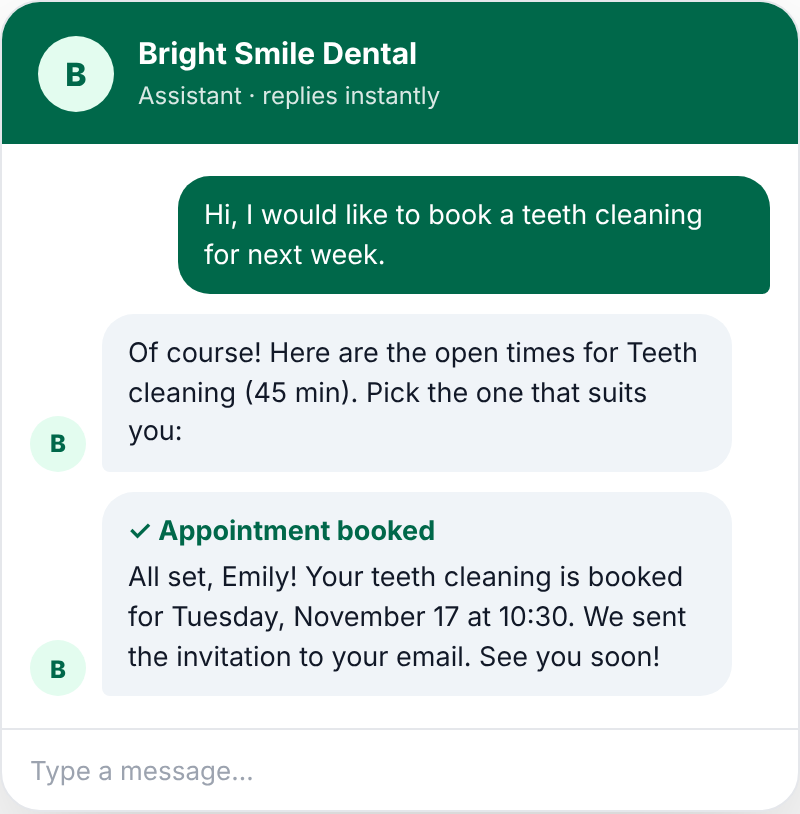
When someone writes "do you have a slot on Tuesday?", the most helpful answer offers specific times and gets the appointment booked. You could already do that with Cal.com or Calendly, which show their own booking page. With Google Calendar there is no separate page: the agent checks your calendar and books within the same conversation.
What it does
When the conversation calls for it, the agent:
- Checks your calendar and works out the free times based on your rules.
- Offers specific times, always showing the time zone.
- Asks for name and email (and phone, if you turn it on).
- Waits for a yes from the visitor before booking. It never assumes an appointment is set.
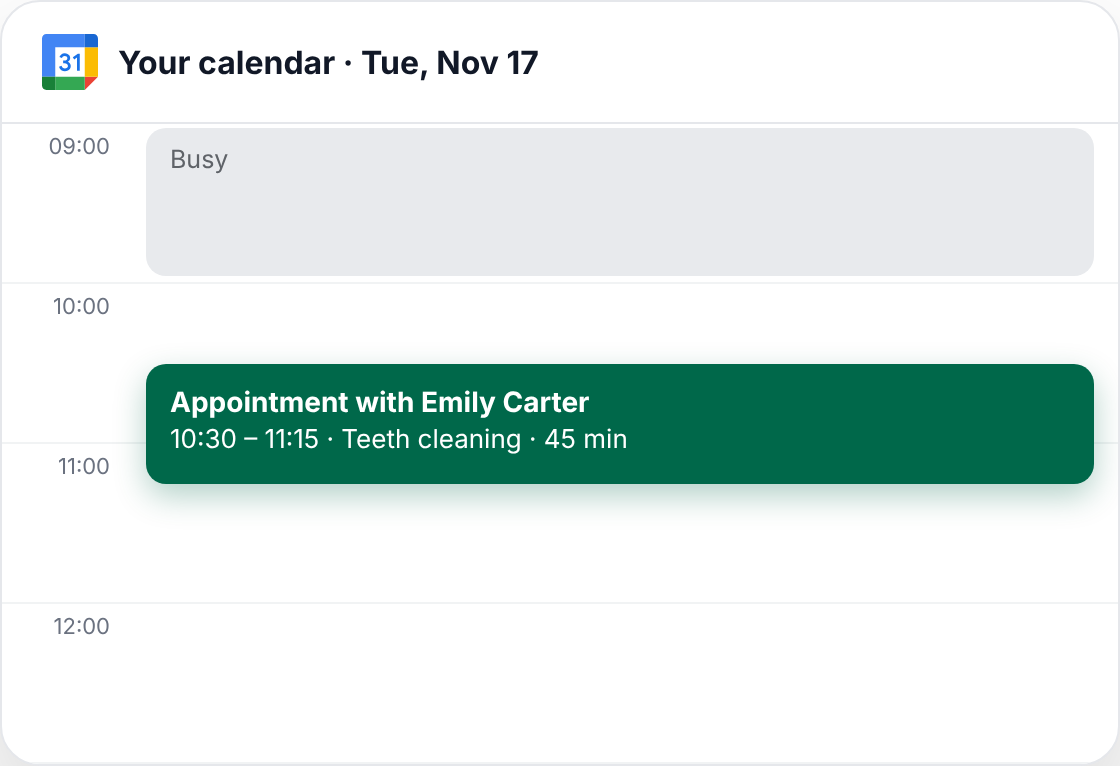
- Creates the event in your Google Calendar, and Google sends the invitation to the visitor's email.
Right before creating the appointment, it checks again that the time is still free. If someone took it in the meantime, it offers others.
On the web and on your messaging channels
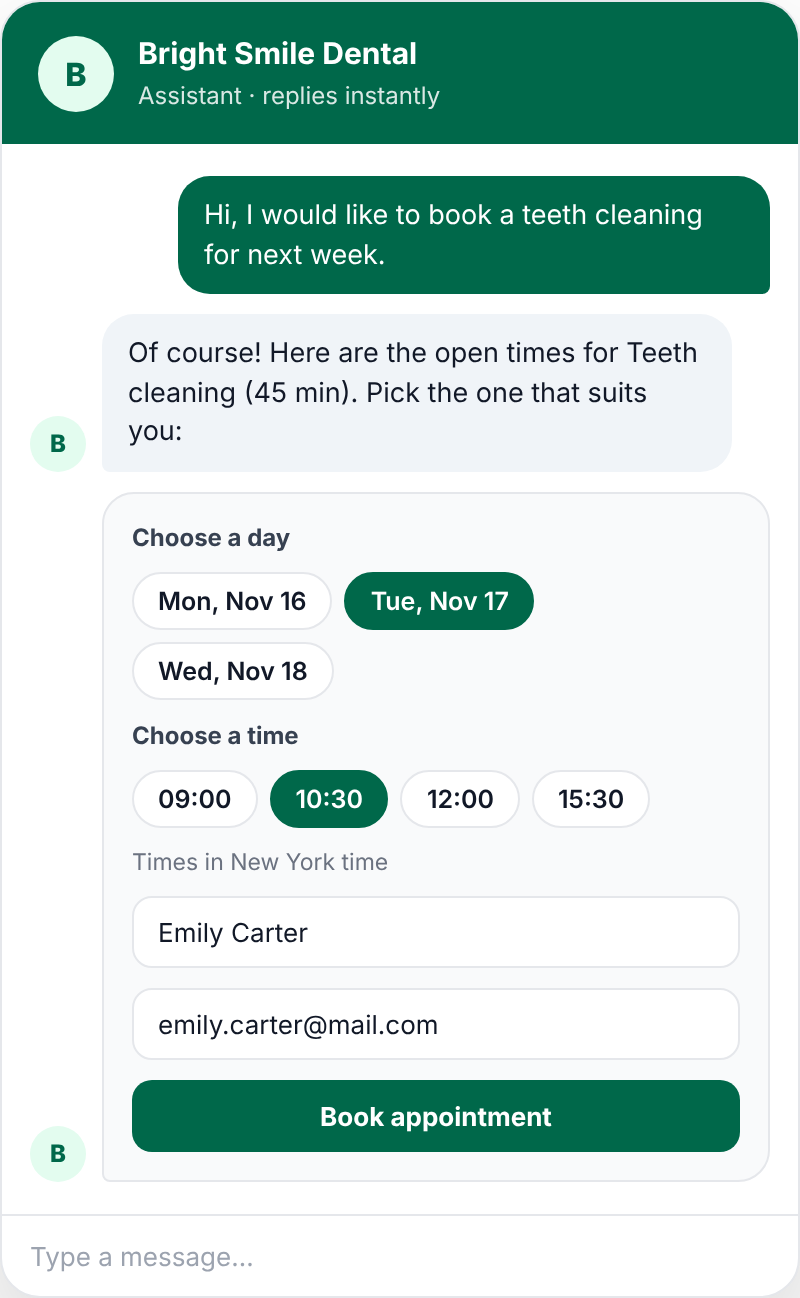
In the website widget, instead of a text list, the visitor sees a day and time picker, fills in their details (prefilled if they already gave them) and taps Book appointment.
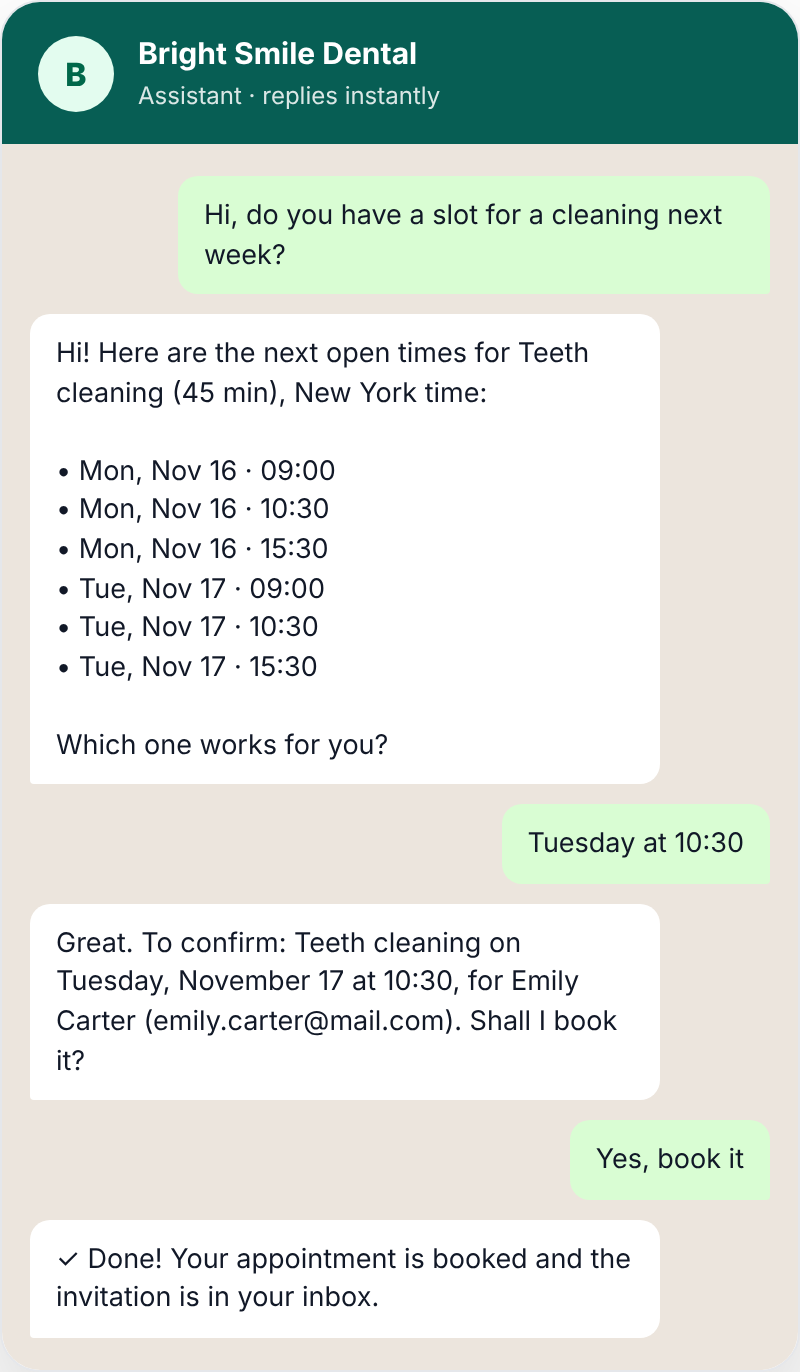
On WhatsApp, Instagram, Messenger, Telegram and Email, times arrive as a list and the visitor replies in writing. The agent shows a summary and confirms before booking.
Only truly free times
You decide when people can book, and the agent never offers a time outside those rules:
- Hours per day, Monday to Sunday, or "No appointments" for days you are closed.
- Appointment length and services with their own length (up to 20). If you have several, the agent asks which one the visitor wants.
- Buffer between appointments, minimum notice and days ahead.
- Holidays: it skips your country's public holidays, and you can add one-off closed days.
ChatNorris only sees the busy times of your primary calendar, without titles or event details.
The appointment, in Leads too
The details the visitor leaves create or update their lead, and the appointment shows up in Leads: in the "Appointment" column, in the lead's detail and with the "Upcoming appointment" filter. If you delete the event in Google Calendar, the lead shows it as cancelled.
You can also customize the event title, add a Google Meet link to the invitation and write a message for when the appointment is confirmed, for example how to get there or what to bring.
How to connect it
- In your agent, go to Integrations → Google Calendar and tap Connect with Google.
- Accept the two Calendar permissions Google asks for: see busy times and create events.
- In Actions, create the Google Calendar Action, set your hours and use Show upcoming times to check what the agent would offer.
- Try it in the Playground: the flow is complete, but no real appointment is ever created there.
We recommend Claude Sonnet or higher as the agent's model: smaller models sometimes treat an appointment as booked when the visitor only seems to agree.
The step-by-step is in the Google Calendar guide.
Availability
Google Calendar is available on the Standard and Premium plans. See the details on the pricing page.
In short
Your agent goes from answering "yes, we have slots" to getting the appointment booked: with real times, on the web and your messaging channels, and with the invitation in the customer's inbox.